Showing posts with label Explain Everything. Show all posts

Friday, 9 August 2019

Digital Fluency Intensive... Day # 8

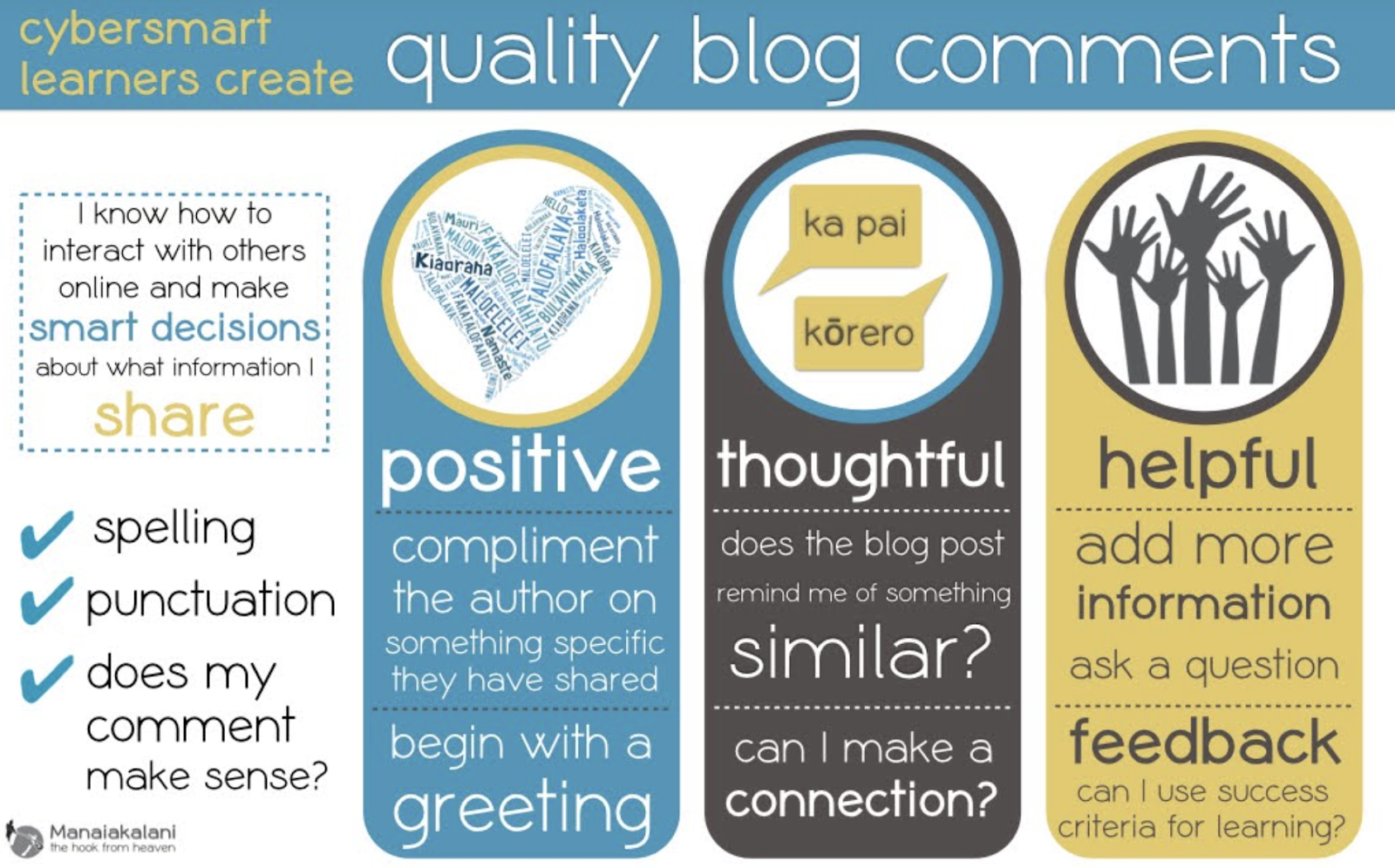
Cybersmart not Cybersafety!

Empowering our learners as connected and confident decision makers. All our students have had Internet in their lives since birth so they are at home in a digital world and if not we need to make sure they are. By promoting the positive, Cybersmart becomes the fence at the top and not the ambulance at the bottom.


How we implement Cybersmart:
  • Cybersmart training is a whole school focus
  • Planned and deliberate teaching, relevant and real scenarios as part of the existing programme of learning.
  • Term 1 Smart learners (LEARN) - are our stdnts effective and prepared users of digital
  • Term 2: Digital footprint (CREATE) - understanding what info we should share and what we should keep to ourselves - making these decisions is important
  • Term 3 Smart relationships (SHARE) - how we comment effectively on blogs, how can we invite an audience to engage with us - how to we equip our learners to be capable and positive contributors to a global society
  • Empowering confident connected actively involved lifelong learners
  • Ubiquitous when learning is accessible A4 (anyone, anywhere, any time any place)
  • Connected empower our young people to engage online behaviour and thinking that elevates positive actions (eg: Tuhi Mai Tuhi Atu as Blogger allows us to take our students online in a safe environment as we can monitor the content and comments)
  • Kawa of Care - empowers parents and caregivers to confidently connect with their children’s learning
  • Cybersmart allows for increased opportunities for learners to engage in cybersmart conversations and decision making with peers, whanau and teachers.
Hapara
  • Dashboard helps make learning visible
  • Enables quick access to student work
  • All Classes - enables access to all school drives
  • Work must be in folders to be visible - open XXX folder then create a doc avoids trying to access unshared work
  • Drag whole Screencastify folder into media folder so its visible to teacher
  • Set up groups on my dashboard won’t affect a co-teacher
  • Reset folders: Will reinstate ‘lost folders’

Manaiakalani 1:1 Journey
Partnership
  • Ako is a whānau or community experience - learning from and with each other
  • Engagement in the decision making eg Kawa of Care
  • Engagement through device ownership
Participation
  • Every learner can participate
  • Every teacher can be supported to become Digitally Fluent when all devices are the same
  • Engagement through device ownership
Protection
  • This should all happen behind the scenes
  • Manaiakalani partnered with Hapara to design Teacher Dashboard to make all digital learning visible
  • Partnership with N4L and Linewize for filtering

Equity and Access - Providing the very best device for learning for EVERY young person
Digital Fluency starts with the ability to use the device (Learners, Teachers, Whānau)
Teachers in a 1:1 Class need to use a learner Chromebook for a period of time to understand what the kids can (and can’t do). Today we used Chromebooks to access our learning the way our students access their learning. It was a real eye opener as this was my first time to purposely use a Chromebook. Completing the digital dig was a great way to familiarise us with what we ask our students to do every day. I know understand why some of my learners choose to use a mouse. The mouse pad would take a bit of getting used to as it didn’t respond the way I wanted it to. 

The Digital Dig should be included at the beginning of EVERY year at EVERY level.


iPads

  • Ipads.manaiakalani.org - explicit site for iPad teachers
  • Best practise is to cast onto an apple tv when using the iPad as a teaching tool
  • Need to start by teaching the correct vocabulary as this is often transferable across the tools
  • We explored Explain Everything (the main platform the junior school uses) which highlighted the fact It is important for Chromebook teachers to realise and remember that students who have been through their junior school learning journey using iPads come with a large kete of digital skills.

Sunday, 1 July 2018

ISTE 2018 - Visualise. Connect. Doodle. Repeat... Sketch noting to enhance learning with EE

Presenters: Baughcum and Dana Ladenburger

Visual note taking (also known as sketchnoting) is a note-taking strategy that connects visuals with words to help improve our ability to synthesize, retain, attend to comprehend and recall information while strengthening our metacognition. While current research is changing how educators view doodling, visual note taking and how they can be used in the classroom, it does shows us the use of graphic/ visual notes can improve retention, learning and so much more. Best practices within visual note-taking are evolving rapidly. This interactive session will have educators doodling to learn, taking their thinking visual and making notes digital. Participants will learn the parts of sketchnoting and the variety of ways each parts unique strengths can enhance the learning of all students, while also experiencing a variety of different ways you can use sketchnoting’s components combined with Explain Everything’s elements to make visual note taking and learning reflective, visual, shareable, collaborative and interactive.


Kiri and I attended this session together so that we could use the tools we have available in our learning space to help our learners create a sketchnote to help them summarise new ideas and make notes when researching. This was a fantastic hands on session and one we have already volunteered to take a toolkit on in term 3.

Sketchnote a journey through time or make notes to help students improve and recall
main ideas.
Typography - font used to identify main ideas or important places, dates, people
Icons -
T can create an icon library that stdnts can become confident using - when confident cld be collaboratively created by stdnts
New idea = new slide
Connectors - Arrows - lines - dashes = connect info and solidify relationships and u/st
Containers - Hold info - thought bubbles, speech bubble, shapes = organise similar ideas and thoughts linked to topic - quotes, contributions, ideas
Container library so that each shape holds specific info and can be transferred across subjects
Structure and colour - Way you format page - idea in one position and containers, fonts etc show progression - linear v abstract using colour coding and anchoring

Input a google doc and/or image so students can sketchnote over and in context
How to bring all together using EE - New slide - title sketchnoting - group using i icon - copy - paste on main note - export to drive and post


Kiri's example of using EE to create a sketchnote

Wednesday, 21 February 2018

Rewind to Remind is alive in LS2!


Last year after observing +Chantal Millward using Explain Everything (EE) on her iPad to create a rewindable learning resource, we asked +Fiona Grant to show us how we could include EE in our Chromebook classes. Rewindable learning has always been alive in our learning space, but this year I am making a conscious effort to make this more visible.  +Karen Ferguson shared the 'Rewind to Remind' image with me (an image she too is using this year), so these buttons now have a permanent place on our LS2 class site. 


In my case it has been start as you mean to go on. Using EE as a modelling book is so new to me I am still at the stage of being very aware that I am using it. Natural progression between what I am teaching and recording is very much still a work in progress, however despite the fact I am totally out of my comfort zone, I am using the tool and I love it!


Everyone has to start somewhere, so my somewhere is with my maths group. I have shared with my learners the fact this is my personal learning challenge so they are very supportive. Each time we review the recording I ask for their feedback. Today one student told me I need to 'speak more like a normal lady.' He was not being disrespectful, he just didn't have the vocabulary to tell me I sounded like a robot. He then went on to tell me to speak like I normally do and not to worry about how fast I write the numbers. I think this is brilliant feedback. It shows that I value my learner's opinions and it also shows them that when we are learning something new it is ok to make mistakes. This is definitely a win - win situation.  


Despite the obvious floors in my published EE clip, I confidently guided one learner back to the 'Rewind to Remind' (R2R) button. She told me afterwards that the 'R2R' was a good idea because no one else knew she needed to look at it. I suggested that she have another look at home tonight so she could practise her new learning from today.

To Chromebook teachers who are yet to venture into this realm, I absolutely recommend taking the first step. The speed at which you can upload this to your google drive means that rewindable learning is immediately available to your learners, making it a useable and valuable resource to enhance your teaching program.

Saturday, 28 October 2017

Learning from my colleagues...

During the 'iPads in a Chromebook class' toolkit last week lead by Fiona Grant, I saw how valuable Explain Everything could be to me as a teacher in a Chromebook classroom. Explain Everything (EE) is a tool the junior syndicates across our cluster have been using for a number of years, but not something I have used in my class. Fiona showed us how effective using EE as a digital modelling book could be. The simplicity and efficiency to provide an immediate form of rewindable learning hooked me in immediately, so I arranged a time the following day to observe Chantal Millward using EE as a modelling book with her Year 2/3 class.


I saw first hand how valuable this was as a way of capturing student voice and teacher evidence. The subtle way Chantal used the record button meant that the conversation she captured was real and in the same place as her written teaching prompts. This was then uploaded to the group's EE task page before they had even returned to their seats, giving them immediate access to their guided session should they wish to revisit it.

My next step is to collaborate with Fiona to create a 'how to' DLO to show other Chromebook teachers how EE can be used to strengthen rewindable learning opportunities in their classrooms.

Wednesday, 16 November 2016

Learning about Explain Everything with Room 2


Today I used a block of my CRT time to join Room 2 (Year 2/3) as they worked on their Ipads. I am definitely not ashamed to say that a 6 year old taught me how to find, save, lasso, crop and lock an image onto an Explain Everything presentation. I was shown how to find Pixabay, then once there, David showed me how to find an image. We were looking for birds because this is linked to our topic of flight. I learnt how to save the image I want then lasso and crop it. David told me how important it was when I used the lasso I had to try and do a solid line because the ends had to join up. He then showed me how to lock it onto my EE page. Sione showed me how to 'draw the lines' if I wanted to write but Siale told me it was easier to use the keyboard and write my story. Such a privilege to see the learning through their eyes. The image below shows what I learnt from Room 2 today.


I found this to be such a valuable experience as I could see how I could use EE in my class (Year 7/8) to support my learners who find literacy a challenge. Thank you Room 2 for being such great teachers!


David showing me what to do. Step by step with very clear instructions!