Showing posts with label DFI. Show all posts

Friday, 16 August 2019

Digital Fluency Intensive... Day # 9

Ubiquitous
Our final session began with a reminder about how important the ubiquitous learning opportunities of being able to learn Anytime, Anywhere, Any pace from Anyone are. 

  • Enables learning to happen outside of 9 - 3 for everyone
  • Summer drop impacts acceleration made throughout the year - this is where the SLJ has harnessed the power of digital learning to continue learning outside of school hours/year
  • Research from the SLJ is a great example ubiquitous learning


  • Technology makes a huge difference if used well and not just as a tool
  • Rewindable learning - capturing the main points that our students need to know to strengthen their learning process - students need to be able to locate and use this content at own pace - Students don’t have to learn at the pace of the fastest student in the class - allows learning to be embedded and deep connections to be made. ‘If it’s worth teaching it’s worth capturing!... If it’s worth learning it’s worth capturing!’

Today was our last DFI session. I have absolutely loved being part of this group of awesome educators and want to say a huge thank you to both Dorothy and Gerhard for empowering us both as teachers and as learners. We ended the session by sitting the Level 1 Google Certification and I passed! The Level 2 exam is my next goal.

Friday, 9 August 2019

Digital Fluency Intensive... Day # 8

Cybersmart not Cybersafety!

Empowering our learners as connected and confident decision makers. All our students have had Internet in their lives since birth so they are at home in a digital world and if not we need to make sure they are. By promoting the positive, Cybersmart becomes the fence at the top and not the ambulance at the bottom.


How we implement Cybersmart:
  • Cybersmart training is a whole school focus
  • Planned and deliberate teaching, relevant and real scenarios as part of the existing programme of learning.
  • Term 1 Smart learners (LEARN) - are our stdnts effective and prepared users of digital
  • Term 2: Digital footprint (CREATE) - understanding what info we should share and what we should keep to ourselves - making these decisions is important
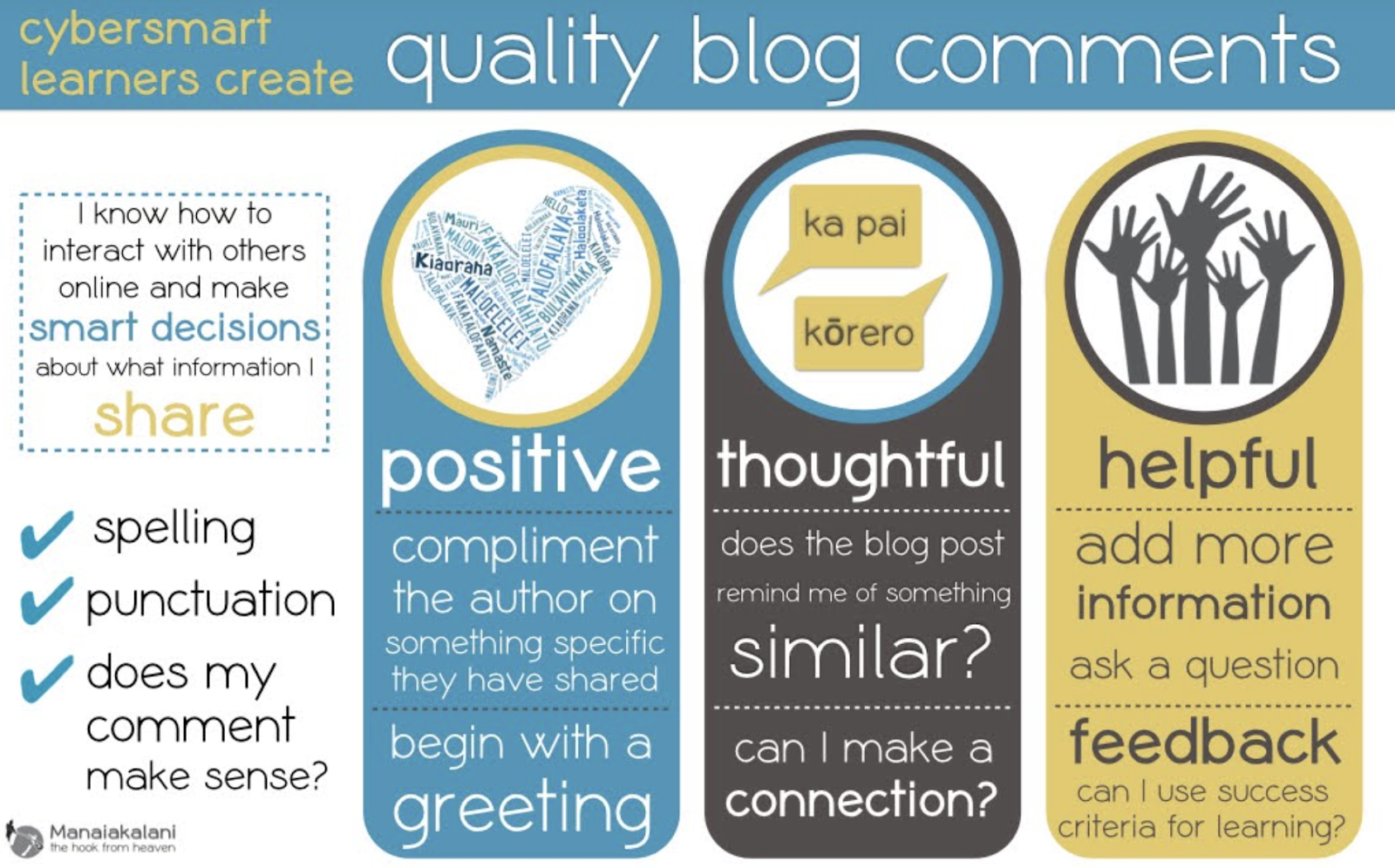
  • Term 3 Smart relationships (SHARE) - how we comment effectively on blogs, how can we invite an audience to engage with us - how to we equip our learners to be capable and positive contributors to a global society
  • Empowering confident connected actively involved lifelong learners
  • Ubiquitous when learning is accessible A4 (anyone, anywhere, any time any place)
  • Connected empower our young people to engage online behaviour and thinking that elevates positive actions (eg: Tuhi Mai Tuhi Atu as Blogger allows us to take our students online in a safe environment as we can monitor the content and comments)
  • Kawa of Care - empowers parents and caregivers to confidently connect with their children’s learning
  • Cybersmart allows for increased opportunities for learners to engage in cybersmart conversations and decision making with peers, whanau and teachers.
Hapara
  • Dashboard helps make learning visible
  • Enables quick access to student work
  • All Classes - enables access to all school drives
  • Work must be in folders to be visible - open XXX folder then create a doc avoids trying to access unshared work
  • Drag whole Screencastify folder into media folder so its visible to teacher
  • Set up groups on my dashboard won’t affect a co-teacher
  • Reset folders: Will reinstate ‘lost folders’

Manaiakalani 1:1 Journey
Partnership
  • Ako is a whānau or community experience - learning from and with each other
  • Engagement in the decision making eg Kawa of Care
  • Engagement through device ownership
Participation
  • Every learner can participate
  • Every teacher can be supported to become Digitally Fluent when all devices are the same
  • Engagement through device ownership
Protection
  • This should all happen behind the scenes
  • Manaiakalani partnered with Hapara to design Teacher Dashboard to make all digital learning visible
  • Partnership with N4L and Linewize for filtering

Equity and Access - Providing the very best device for learning for EVERY young person
Digital Fluency starts with the ability to use the device (Learners, Teachers, Whānau)
Teachers in a 1:1 Class need to use a learner Chromebook for a period of time to understand what the kids can (and can’t do). Today we used Chromebooks to access our learning the way our students access their learning. It was a real eye opener as this was my first time to purposely use a Chromebook. Completing the digital dig was a great way to familiarise us with what we ask our students to do every day. I know understand why some of my learners choose to use a mouse. The mouse pad would take a bit of getting used to as it didn’t respond the way I wanted it to. 

The Digital Dig should be included at the beginning of EVERY year at EVERY level.


iPads

  • Ipads.manaiakalani.org - explicit site for iPad teachers
  • Best practise is to cast onto an apple tv when using the iPad as a teaching tool
  • Need to start by teaching the correct vocabulary as this is often transferable across the tools
  • We explored Explain Everything (the main platform the junior school uses) which highlighted the fact It is important for Chromebook teachers to realise and remember that students who have been through their junior school learning journey using iPads come with a large kete of digital skills.

Friday, 2 August 2019

Digital Fluency Intensive... Day # 7

Empowerment is dependent on the interconnectedness of our kaupapa (connected, ubiquitous, empowered, visible). Our tamariki start school at 5 years of age having heard 32 million less words than higher decile communities. Encouraging 5+ a day 'ping pong' style conversations is one way we can help our learners increase their oral language levels. The default of visible empowers our tamariki and is vital for connections to be made both before and after the learning.

‘The Manaiakalani kaupapa of empowerment is the advancing of Rangatiratanga; taking back control of their own lives.’ - Pat Sneddon


Computational Thinking

How a computer thinks, algorithms, programming, algorithmic thinking skills (logical thinking). To introduce us to this session lead by Viv, we were given the challenge of working out who was born closest to Auckland using an algorithm layout on floor. Our aim was to move from box to box following arrows according to a given criteria. This was not only a lot of fun but also allowed me to make solid visual connections to the learning ahead.


Ethics and Morals 

We can all gather data but need to think and make choices about what we do with this information. To explain this further we were asked a series of questions linked to different scenarios that really tested our own ethics and morals. The link to the our questions is here.

Curriculum Deep Dive

The Digital Curriculum is about using technology ‘in authentic contexts and taking into account end-users’. Digital fluency is inquiry and communication - using technologies that already exist to learn-create-share (eg: adding a filter on Instagram). Digital Technologies is construction and expression to create something with technology (eg: can make a filter for a photo using software). 

  • Inquiry includes data modelling, spreadsheets, access to online databases, searching, access to virtual labs, online observatories, virtual field trips
  • Communication includes word processing, e-mail, virtual conferences, graphics software, blogging, vlogging, presentations, websites and tutorials
  • Construction includes robotics, computer-aided design, control systems, programming, electronics, digital manufacturing, game design and sensors.
  • Expression includes interactive video, animation software, 3D design, music composition, digital art, digital story telling


Practical Application 

We explored several sites that uses blockly (a programming language that clicks together) to practise our own computational thinking skills. This is definitely an area that is still a work in progress for me so I really appreciated the opportunities to ask questions and have a go.

Hour of Code (Thanks for inspiring me to get my certificate too Angela)

Binary

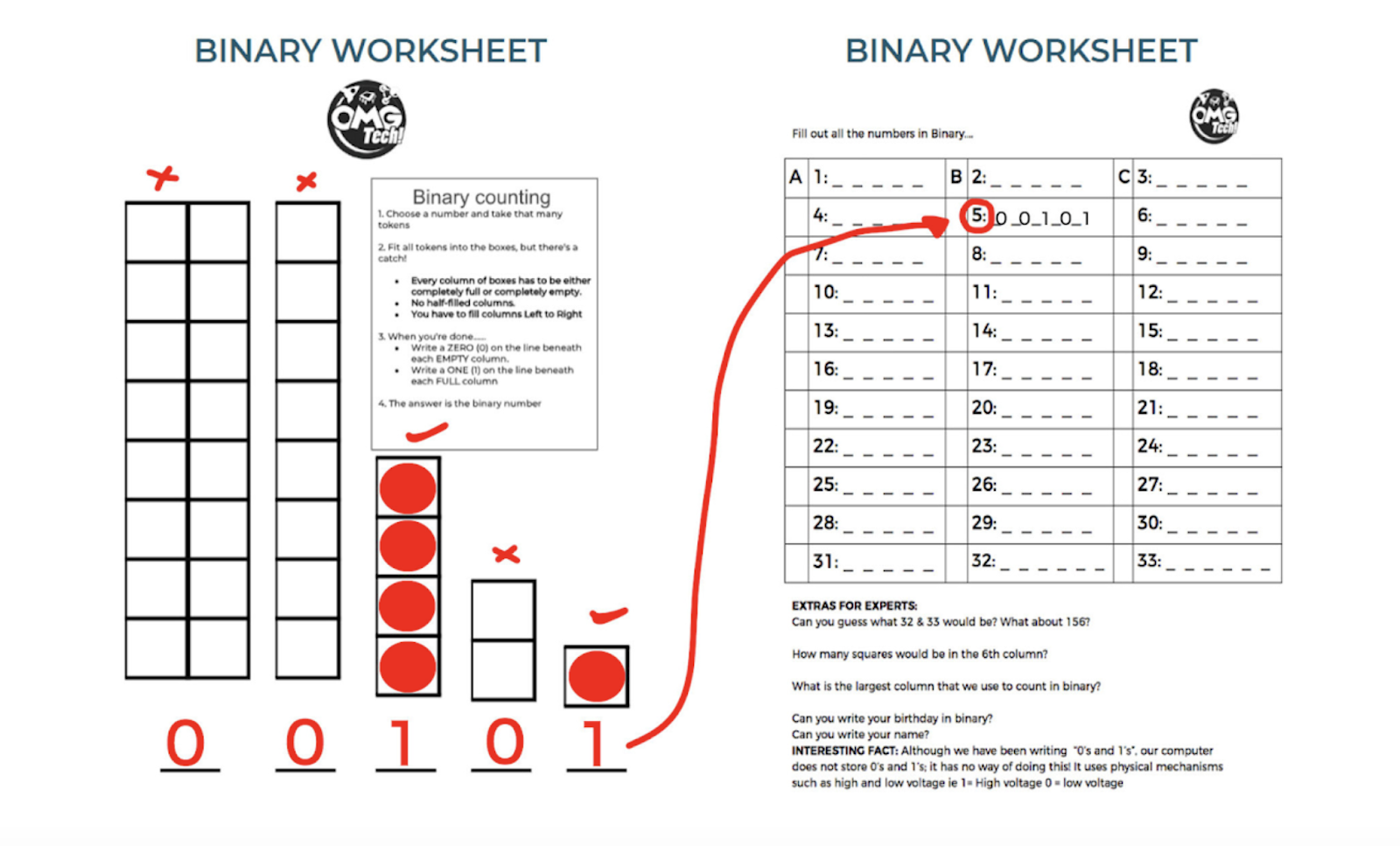
Learning about binary numbers was a really valuable part of today's learning for me as it filled another one of my own knowledge gaps. Binary is a number system that uses 1 and 0. I have seen other teachers use binary challenges with their students but I have never done that myself as I did not have the content knowledge. However after completing todays challenge I will definitely be adding this to my planning. The Khan Academy  has a video that explains binary. The image below can be sourced here  and is a challenge that was a lot of fun to do.


Useful Takeaways:

  • An algorithm is a set of instructions.
  • Mapping the algorithm pathway on the floor is a great visual connection and scaffold
  • Debugging and error detection introduce the problem solving components
  • Coding is not scary 
  • Binary is fun!
  • I will be adding some of today's content to my planning.

Friday, 26 July 2019

Digital Fluency Intensive... Day # 6


DFI Session# 6 reminded us about connecting with Manaiakalani. Being connected digitally empowers our learners. The default is VISIBLE so connections can be made. We are connected to a powerful network. 


Connectivity is a way of life for our students if we take it from them and they will check out. If you are all paddling in the same direction, you have greater power, you are more efficient. There is an impact on the nature of teaching and learning because if the teacher and student each know what it is you’re meant to be focusing on you are more likely to reach your goals. -  Dorothy Burt 


Connected learners share. To make a connection both parties need to SHARE. Sites help close the geographical gaps of the wider connected network. Twitter and G+ increase the audience for our blog posts and helps connect our learners and our teachers. Tuhi Mai, Tuhi Atu (Write to me, write to others) creates a connection with a meaningful audience  for our learners and online toolkits allow us to share good practice.

Google Sites

Clarelle Carruthers shared a few insights into the rationale behind creating a google site. When thinking about putting together a class site you need to think about:

  • Who your learners are
  • How they are accessing the site
  • What your theme is
  • Why you are using the site


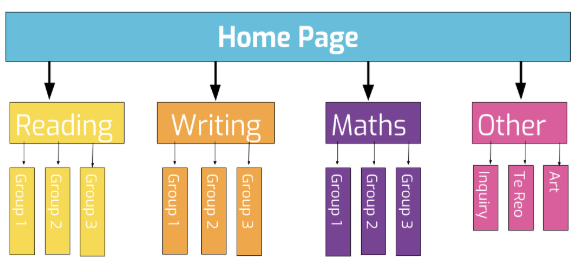
Designing your layout and having a plan before you begin will keep your site organised and easy for the user to navigate. Here is the link to the presentation Clarelle shared. We then explored each others class sites and left feedback. It is both interesting and valuable to find out suggested changes from your colleagues. It was suggested to me that I include an image of myself so that visitors to my site can make an immediate visual connection to who the teacher of LS2 is. It was also suggested that the images of my students also needed to be more visible. This lead to a bit of rearranging and organising but I love the fact that regardless of where we are in our digital journey, we are always learning and adapting. As you can see in the image below our landing page now has a photo of me, my contact details and an image carousal that reflects student life in LS2.


Useful Takeaways:
  • Think about colour, layout and font
  • Think about whitespace to avoid cluttering
  • Put all site docs etc in one folder with open sharing permissions to ensure its visible on your site
  • Need to access links within 3 clicks
  • Use a layout (in site tools) to ensure buttons are aligned
  • Create a Screencastify to show new students how our site works. This will create an excellent rewindable opportunity that can be shared at home as well.

Friday, 28 June 2019

Digital Fluency Intensive... Day # 5

DFI Session# 5 was about collaboration with sites. Making learning visible is part of our Manaiakalani learning kaupapa. Simply put visible learning means you can see it? Can our whanau see what their tamariki are learning? Can our tamariki see their own learning pathways? Our technology can remove the barriers that stop this from happening and will help contribute to their success in learning.

Learning shared in advance makes a difference to our learners. Modes are the methods we use to engage our learners. We need to hook our learners in so they remain curious and inspired rather than simply looking and walking on. Multimodal captures the learning of a number of learning styles rather than just one size fits all. 
“What engages one in learning doesn’t necessarily engage another...”(Chrissie Butler). When planning teachers should ask ‘Will this hook my learners?’ If not think again to avoid losing the learning connections that can be made.
 Image result for sites logo
Google Sites:
  • Sites.google.com or if in drive: New - more - sites
  • Have a folder dedicated to site with permissions set to share with everyone to avoid blocking visibility
  • Class sites must be easy to navigate so students can access learning easily (within 3 clicks) - avoids barriers to learning
  • Use post-its to map out site pages - sub pages + content etc
  • Buttons can be created within sites and/or via google drawings
  • Scroll down the 'insert' toolbar to find shortcuts to link images, charts, slides etc - all can be accessed directly from your google drive
  • Embed YouTube playlists and a twitter feed
  • Embed forms and their corresponding spreadsheets 
Angela, Sarah and I collaborated to create a multimodal site that will allow our learners to explore the storytelling of myths and legends through multi textual opportunities to extend and deepen their connections to the learning.  


The link to our site is also on this spreadsheet created by Angela Moala. The thinking behind this awesome resource is explained in detail on her blog (Angela's blog reflection). 

Friday, 21 June 2019

Digital Fluency Intensive... Day # 4


Image result for google sheets logo . 

DFI Session# 4 was about dealing with data. Today we learnt some tips and tricks to make dealing with data in goggle sheets easier and more manageable. Going forward I will definitely be freezing the headings and name cells so that I can scroll through the data to make viewing separate components easier, and using the filter view options so that I can look at specific group data more easily. The autofill feature recognises sequences and patterns. Just click on the first two cells then click and drag from the bottom right corner of the cell to utilise this feature. The explore tool allows for quick data analysis. It creates graphs that can be imported into the sheet - these can be manipulated from there.

Image result for google form logo

Google Forms have so many uses in the classroom from gathering student voice, to collecting data, creating quizzes and pick-a-path stories to name a few. I have used google forms a lot in the classroom but will be using them more often now to collect evidence with images, links to completed work and blog comments and to explore the world in my maps. 


One of my takeaways from today is to make our class sites easily accessible to our parents and caregivers. Sharing and connecting is not new, it’s just the mode that changes. Our whanau are our authentic audience. Sharing these QR codes will allow them to continue to strengthen their connections to the learning their tamariki are making connections to. 


Friday, 14 June 2019

Digital Fluency Intensive... Day # 3


DFI Session# 3 had a media focus. My animation reflects the content we explored today to will help us help our tamariki become ‘creators of content not merely consumers’. We need to make sure our learners are safe in an online environment, something that is no different to the way we make sure our learners are safe in an EOTC environment. As teachers in a 1:1 environment we can do this by ensuring the settings in YouTube and Blogger are in place.

‘Creativity is not about doing something better than others, it's about thinking, discovering, exploring and imagining’, Kohl (2008). Joining us in our session today were three of my skilled creators Jack, Alex and Nyjah who confidently shared with their amazing digital drawing skills. They began with a 'how to' presentation that they had created then took us step by step through creating an animation in Google Slides and creating a drawing using the line tools in Google Draw. This part of my reflection is unashamedly a boast post!


My takeaways from today are:

  • To make time to make sure the safety settings on blogger and YouTube are in place so that my learners can operate safely in an online environment.
  • To share the online safety reminders with our PBS staff.
  • To think about the opportunities my learners have to create.
  • To share the possibilities of introducing of rewindable learning that our drone can offer sport training. Thank you Kent for this tip.
  • To share the possibilities that our drone can offer for live streaming and delayed coverage so we can strengthen whanau connections.
  • To use the Google Slides to create my own pick a path style maths challenges to help strengthen my learners number knowledge and vocabulary connections.
  • To use the Google Slides to encourage my learners to create pick a path DLOs that reflect their understandings and connections to the learning.
  • To strengthen my own digital drawing skills by completing my own digital portrait.

Friday, 7 June 2019

Digital Fluency Intensive... Day # 2


The infographic above reflects the takeaways from todays session that I have taken from our session today. The shortcuts for calendar are a great way to flip between views (weekly, daily, monthly). Google Keep has so many amazing features! I used this tool often for note taking and thought I was making use of all the features available. I now realise I was not! To be able to upload an image with text and then have the ability to grab the text is something I will definitely use in the classroom as there are so many possibilities to this feature. Angela Moala shared an idea with me of using Google Keep when I am commenting on my student's work. So often we find we are writing the same feedback so being able to have this bank of often used comments that can be copied and pasted is something I will access often.

I found the workflow session linked to organising our gmail and tabs incredibly valuable. I no longer have an overflow of comments sitting in my inbox. These are now all archived or sitting under the appropriate labels with filters in place.

We had an introduction to Google Hangouts and explored possibilities of how we can use this tool outside of what we already do with toolkits. Here is the screen recording of my hangout session with Angela and Sarah. Thank you Sarah for capturing this.

Here is the link to my notes from our learning today.

Friday, 31 May 2019

Digital Fluency Intensive... Day # 1


Learn, create share is the pedagogy we follow as part of the Manaiakalani cluster so it is important that as teachers we not only model this process, but also remember to give our learners time to share their work.


The infographic (our skills challenge to make using only a google doc) above reflects the takeaways from todays session that I will be taking back and ensuring my learners are able to use. In addition to this I will be using these words when we open new documents in G Suite. "Locate your folder - open a new doc/presentation etc - write your name followed by the learning title." Starting a new doc in folder helps to ensure all work is shared with the teacher. If Chrome and Drive are to be effective they need to be set up well.
  • Comments tool/Assign to: A great tool for encouraging student led reading comprehension by assigning questions and responding to assigned questions.
  • Voice Typing: A great tool to help learners of all ability levels. 
  • Scavenger Hunt: A fun way to practise skills.
  • Explore Tool: Enables web, image and drive access within Google docs.
  • Table of Contents: Provides visual links to headings and subtitles in a doc.
  • Overview: Save page 'real estate' by adding links to headings and subtitles on the side of the doc.
  • Shortcuts: Time savers... command + shift + B (opens bookmarks bar), command + shift + T (opens a new tab), command + Z (adds a doc to your Drive without making a copy), command + shift + v (pastes without formatting). Command for Mac/Control for Chromebooks

My teacher takeaway from today is the zoom feature. Being able to enlarge the words or images I want my learners to focus on while I'm talking to them will be so much more effective than asking them to focus on the cursor. The pathway to unlock this feature is:

System preferences - Accessibility - Zoom (my settings look like this...)


DFI Cohort 2 2019
Update:

Today (4/6/19) I challenged my students to create their DLOs using only Google Docs. I noticed that my instructions were a lot more detailed and specific following my day at DFI. It was interesting that this challenge was met with 'Why can't we just use Google Draw?'.... I explained that I wanted to introduce them to the explore tool so we set about creating our DLOs following the same set of challenges that we had at our DFI session. This was a huge success with one group choosing to use the draw tool to create their images, and several powerful conversations taking place as to which definition best suited the purpose of the task. What I noticed most about my instruction was that it was explicit and I was able to problem solve quickly which meant that momentum was not lost. 

The image below was my instructional exemplar that was created so that I could model how to use the explore tool. 


Here are a few examples of our completed DLOs:


Our next challenge was to use the voice to text tool to write our information reports. I set this as the challenge component of our collaborative writing task and judging by the feedback was very well received due to the novelty factor, as well as how it helped my learners notice where punctation was needed. Mele and Marieta's example below reflects what we did in this lesson. Click here for the link to Mele's blog post. 

I also used this tool with my phonics group so they could dictate their sentences, taking away the hard part and allowing them to show their real understanding of the learning.